OAuth Applications
The first step when building an integration with the Clio Platform API (Grow API) is to create a new Developer Application in the Developer Portal. The information you'll need to provide is as follows:
| Field | Required? | Description |
|---|---|---|
| Name | true | The name of your app. This will appear on the OAuth approval page during user authorization. |
| Redirect URIs | true | One or more URLs to which the user will be redirected after they complete the OAuth authorization flow. These must be exact matches, including protocol (http/https), domain, and path. |
| Use PKCE | false | Enable Proof Key for Code Exchange (PKCE) for enhanced security. See PKCE below for more information. |
| Firm identifier | false | The firm identifier for private apps. This restricts the app to a specific Clio Grow account. See Finding Your Firm ID below for instructions on locating your firm identifier. |
| Developer Terms of Service | true | You must accept the Developer Terms of Service to build an integration with Clio. |
| App Permissions | true | Select the access permissions (scopes) your application will need. See the permissions section for more information. |
If your app operates in multiple Clio regions, you will need a Clio account and Developer Application in each region. See the Regions page of the Partner Handbook for more information.
PKCE (Proof Key for Code Exchange)
PKCE is an OAuth 2.0 security extension that helps protect against authorization code interception and injection attacks. PKCE is recommended for all OAuth clients, including those that use a client secret, as it provides an additional layer of security beyond the client secret alone.
When PKCE is enabled, your application generates a code verifier and code challenge during the authorization flow. The code verifier is kept secret by your application, while the code challenge is sent to Clio during authorization. When exchanging the authorization code for an access token, your application must provide the original code verifier, which Clio uses to verify the challenge.
For detailed information about implementing PKCE, see OAuth.com's guide to PKCE, the OAuth 2.0 Security Best Current Practice, and RFC 7636: Proof Key for Code Exchange by OAuth Public Clients.
Permissions and Scopes
When creating your developer application, you must specify the permissions (OAuth scopes) your application requires. Permissions define what resources your app can access and what actions it can perform.
You should choose the smallest set of permissions necessary for your application to function properly. For example, if you're building an app that only reads contact information, you don't need write permissions for contacts or access to matters.
Permissions are divided into read and write options:
- Read access allows you to retrieve records via
GETrequests - Write access allows you to create, update, and delete records via
POST,PATCH, andDELETErequests
For detailed information about available permissions and how they map to API endpoints, see the permissions documentation.
Private vs. Public Apps
Clio supports two types of developer applications: private apps and public apps. The type you choose determines how your app can be distributed and what capabilities it has.
Public Apps
Public apps are designed for distribution to multiple Clio customers. Key features include:
- Can be discovered and installed by any Clio customer
- Can be listed in the Clio App Directory
- Must go through Clio's app approval process
- Eligible for the Clio App Partner program benefits
- Must follow Clio's Developer security and data guidelines
Private Apps
Private apps are built for the specific needs of a single Clio account or law firm. Key features include:
- Designed for use by a single Clio account (your own firm or a client's firm)
- Do not go through Clio's app approval process
- Cannot be listed in the Clio App Directory
- Useful for internal tools, custom integrations, or data migration projects
For more information about building private apps, see the Building Private Apps guide.
Finding Your Firm ID
If you're building a private app, you may need to provide your firm ID when configuring certain integrations. To find your firm ID in Clio Grow:
- Log in to your Clio Grow account
- Navigate to Settings (gear icon in the top right)
- Click Account (or navigate to
/settings/account) - Scroll to the Firm section
- The Firm ID is shown as a label/value pair in this section
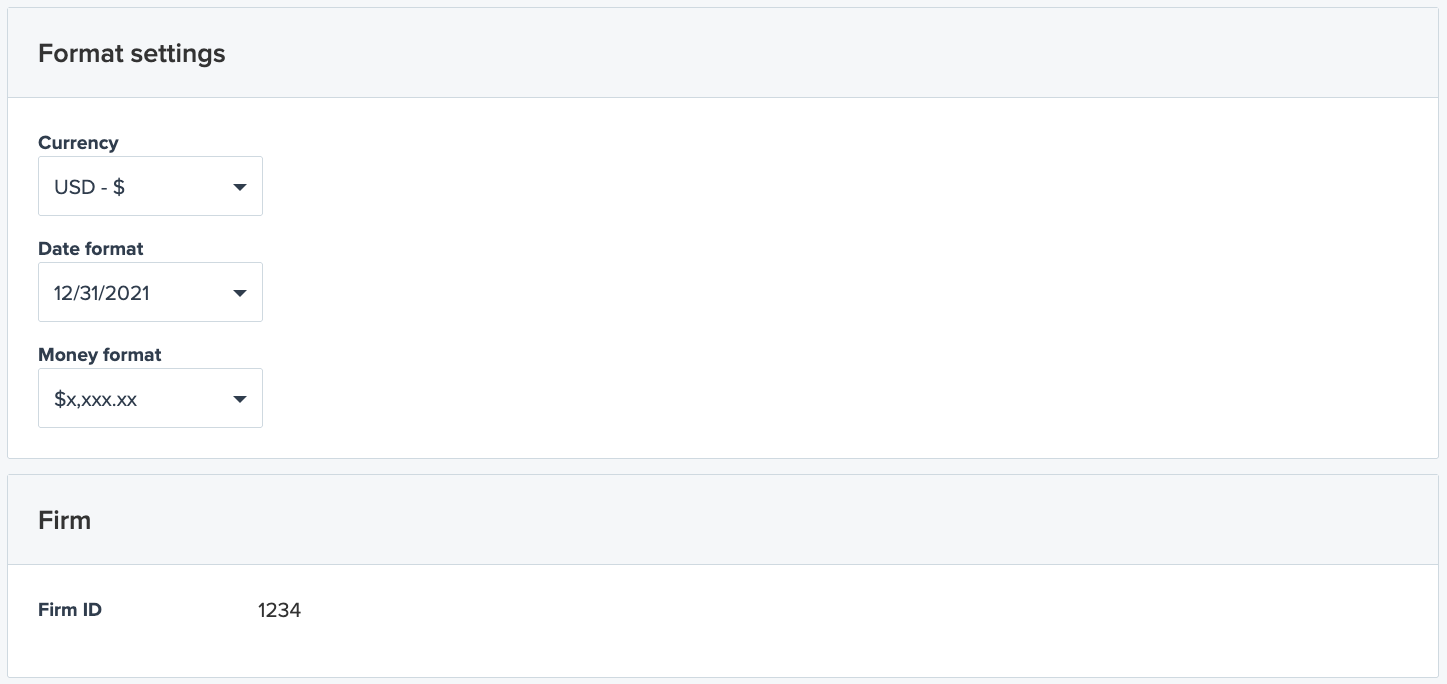
Note: You need admin permissions to access the Settings/Account page. The Firm section only appears if your account has a firm_identifier set. If your account doesn't have a firm identifier configured, the Firm section won't be visible in the Account settings page. If you don't have admin access or cannot locate the Firm ID, contact your account administrator or API Support for assistance.
Finding Your App ID
Each Clio Platform Developer Application has an App ID which uniquely identifies the app in Clio Grow. This is not the same value as your App Key or App Secret. When contacting API Support, you should always provide your app ID to enable quicker troubleshooting.
To locate your App's App ID:
- Navigate to the Developer Portal using the Clio Account with which you created your application.
- Locate your application in the list of apps. The App ID is listed in the table.
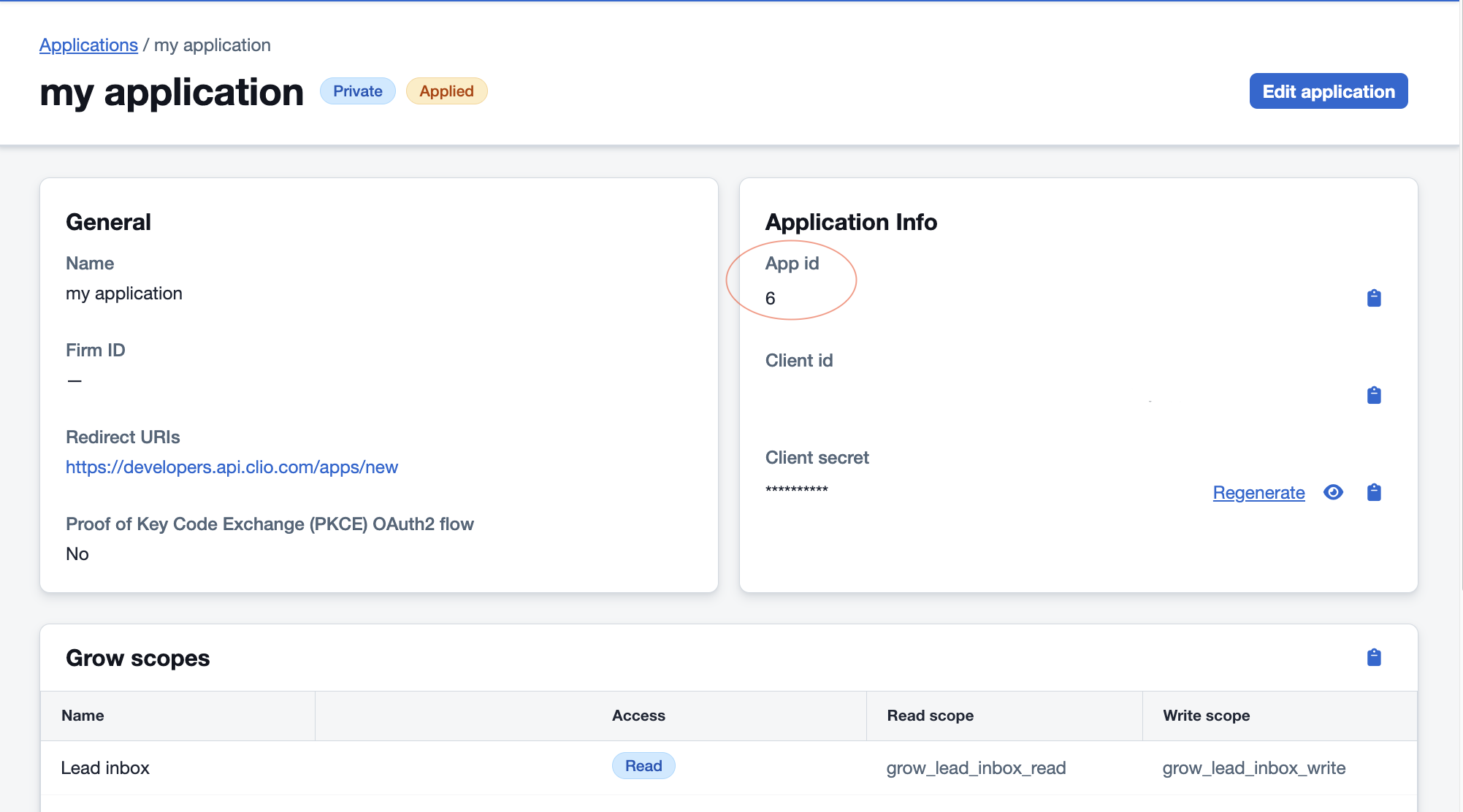
Note: Application IDs are different for each Clio region your app is available in. For example, apps created for api.clio.com and eu.api.clio.com have different IDs.
Also note that while your App ID is safe to share with Clio support, your App Key and App Secret should be kept confidential. These credentials are used to authorize users and should never be shared publicly or committed to version control.